When installing Alteryx Designer 2026.1 or later through Alteryx One App (AOA), the Designer installation may fail with the following Windows Installer message:
The system administrator has set policies to prevent this installation.
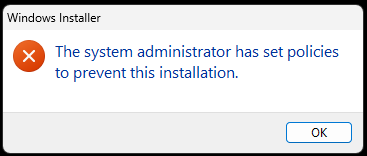
The specific cause can vary depending on the security controls and software-deployment policies configured in the Windows environment.
Because Designer installation is initiated through Alteryx One App, troubleshooting should capture both the Windows Installer activity and the process execution activity occurring when the failure is reproduced.
Use the steps in this article to collect diagnostic information that can help identify whether the installation is being prevented by Windows policy, application control, endpoint security software, file-system permissions, or another environmental restriction.
- Alteryx One App
- Alteryx Designer 2026.1+
- Microsoft Windows
Note: As of Designer 2026.2, Designer is only install through the AOA app.
There is no evidence in AOA logs identifying an AppLocker rule, ACL denial, EDR action, Windows Installer policy, Python restriction, MSI custom-action failure, etc. The AOA layer loses visibility at precisely the point required for diagnostics on what the blocking cause is.
This message is generated by Windows Installer when Windows or another control in the environment prevents the installation from proceeding.
The message alone does not identify the specific policy or product responsible.
Possible causes can include:
- Windows AppLocker
- Windows Defender Application Control (WDAC)
- Endpoint detection and response (EDR) or other endpoint security software
- Software Restriction Policies
- Group Policy or Windows Installer policies
- File-system permissions or Access Control Lists (ACLs)
- Enterprise software-deployment restrictions
- Restrictions on child processes or executables launched from a user's profile
An organization may also permit installation of Alteryx One App itself while applying different restrictions to installers or processes subsequently launched by Alteryx One App.
Diagnostic logs should therefore be collected before determining which control is responsible.
Work with your Windows or endpoint-security administrator to reproduce the installation failure while collecting the following diagnostics.
1. Enable Windows Installer logging
Windows Installer logging can be enabled through the Windows Registry. Administrator privileges are required to make this change.
Important: Registry changes should be performed by your IT or Windows administrator. Incorrect registry changes can affect Windows operation.
- Open Registry Editor (regedit) as an administrator.
-
Navigate to:
HKEY_LOCAL_MACHINE\Software\Policies\Microsoft\Windows\Installer -
If the Installer key does not exist, create it under:
HKEY_LOCAL_MACHINE\Software\Policies\Microsoft\Windows -
Under the Installer key, create a new String Value (REG_SZ) named:
Logging -
Set the value of Logging to:
voicewarmupx - Close Registry Editor.
- Open Alteryx One App and reproduce the Designer installation failure.
-
After the failure occurs, locate the newly generated Windows Installer log. Windows Installer logging creates log files with names similar to:
MSIxxxxx.login the user's Windows temporary directory. Enter the following in File Explorer or Run to open that directory:
%TEMP% - Identify the MSI log corresponding to the timestamp of the failed Designer installation and provide the log to your IT administrator or Alteryx Support.
-
After diagnostic collection is complete, return to:
HKEY_LOCAL_MACHINE\Software\Policies\Microsoft\Windows\Installerand remove the Logging value if persistent verbose Windows Installer logging is not required by your organization.
The registry-based logging method is also documented in the Alteryx Knowledge Center article “Configuration data for this product is corrupt” while installing Alteryx. Alteryx Knowledge Center article
2. Capture the failed installation with Process Monitor
Process Monitor (ProcMon) can show file-system, Registry, process, and other operating-system activity occurring when Alteryx One App attempts to install Designer.
- Download Process Monitor from Microsoft Sysinternals. Microsoft Process Monitor
- Have an administrator start Process Monitor immediately before reproducing the issue.
- Start the Designer installation from Alteryx One App.
- Allow the installation to run until the Windows Installer error is displayed.
- Stop the Process Monitor capture as soon as the failure has been reproduced.
- Save the complete capture in native PML format.
- Provide the .PML file to your IT administrator or Alteryx Support for analysis.
The trace can help identify operations such as ACCESS DENIED results or process/file execution behavior associated with application-control or endpoint-security restrictions.
3. Review Windows Event Viewer
Check Windows Event Viewer for events generated at the same timestamp as the failed installation.
Review:
- Windows Logs > Application
- Windows Logs > System
- Applications and Services Logs > Microsoft > Windows > AppLocker
- Relevant Code Integrity / Windows Defender Application Control logs, when those technologies are enabled
- Logs associated with the organization's endpoint-security product, when applicable
Export relevant events or capture their complete event details, including the Event ID, timestamp, source, and message.
4. Determine how Alteryx One App was deployed
Document how Alteryx One App was installed on the affected computer. For example:
- Manually by the user or administrator
- Microsoft Intune
- Microsoft Configuration Manager (SCCM)
- Enterprise software/package-management software
- Another managed deployment process
This information is relevant because security policies may treat the original Alteryx One App installation differently from the Designer installer or child processes subsequently launched by Alteryx One App.
5. Correlate the diagnostic results
Compare the timestamp of the failed installation across:
- Windows Installer log
- Process Monitor capture
- Windows Event Viewer
- Endpoint-security/application-control logs
The correlated results can be used by the organization's IT or security team to identify the specific policy or security control preventing Designer from being installed.
If the blocking control cannot be identified, provide the MSI log, ProcMon .PML capture, relevant Windows events, and details about how Alteryx One App was deployed when contacting Alteryx Support.