How To
Monitor automation run consumption to understand resource allocation and operational usage patterns.
The Alteryx One Automation Run Template enables administrators to:
- Track consumption by user and workspace.
- Combine Alteryx One cloud and Alteryx Server on-premises usage into a normalized dataset.
- Use the resulting data with analytical tools such as Auto Insights and Agent Studio for further analysis.
Environment
Applies to:
- Alteryx One Professional or Enterprise edition.
- Alteryx One environments where relevant licenses are managed through Alteryx One.
- Account administrators.
- Alteryx Server environments using MongoDB or SQL Server persistence layers when on-premises usage is included.
Prerequisites
Before you begin the configuration, please ensure that your environment meets the following requirements:
- Platform: You must be on Alteryx One on either the Professional or Enterprise edition.
- Permissions: You must have Account Admin privileges for Alteryx One.
- Infrastructure: If tracking on-premises usage, you must have access to the appropriate Alteryx Server persistence layers (MongoDB or SQL Server).
- Licensing: All relevant licenses must be managed through Alteryx One.
Procedure
Step 1: Installing the Alteryx One Automation Run Template
First, prepare your local environment to host the extraction tools.
- Download the Alteryx One Automation Run Template zip file from your designated resource portal.
- Extract the contents of this file to a directory of your choice on your local machine.
Step 2: Generating API Credentials
To enable secure communication between your local workflows and the Alteryx One environment, you must establish OAuth 2.0 authentication.
- Open the Token Generator – App.yxwz file located in the extracted directory.
- Log in to your Alteryx One portal via a web browser.
- Navigate to Account Admin > Profile > User Preferences > OAuth 2.0 API Tokens.
- Select OAuth 2.0 API Tokens and click Generate.
- Copy the Access_Token and Refresh_Token provided, and input them into the respective fields in the Token Generator – App.
- Retrieve the Client ID and Token Endpoint URL from your portal and paste them into the corresponding fields within the Token Generator app.
- Return to the main Admin Console > Overview page, copy your total automation credit amount, and paste it into the app interface.
- Run the application.
Note: Upon successful completion, a lookup table will be generated. It is critical that you populate this table with workspace names by matching your Workspace IDs—found in the Admin Console Workspaces tab—to their respective names. This mapping is essential for the main workflow to attribute credit consumption correctly.
Step 3: Configuring the Workflows
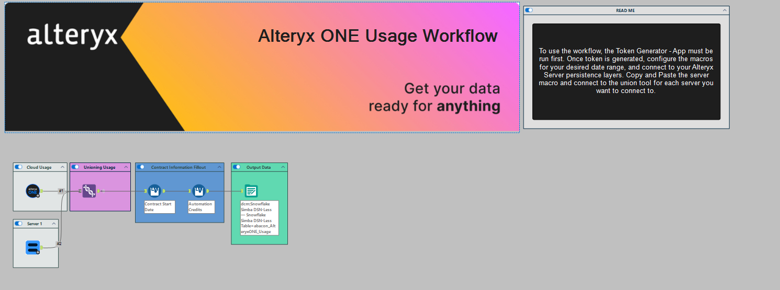
Ad Hoc Alteryx One Automation Run Template (Historical Data)
This workflow is intended for your initial extraction of historical data. We recommend running this process once before setting up any recurring schedules to establish your baseline data.
- Open Usage Export Workflow – Ad_Hoc.yxmd.
- Specify your desired date range within the Cloud Usage macro.
- Add the Server Usage Macro for every server you wish to track.
- Configure each macro:
- Select the specific date range.
- Identify the persistence layer (MongoDB or SQL Server).
- Reference: For database connection troubleshooting, see the Alteryx Server Usage Report documentation.
- Select your desired output destination and execute the workflow.
Cloud Usage Macro - Ad Hoc.yxmc (Historical Data)
- Update Download (83) with your DCM connection to the Alteryx One API
Daily Usage Export Extractor - Macro.yxmc
- Update Download (3) with your DCM connection to the Alteryx One API
Daily Alteryx One Automation Run Template (Scheduled)
After the Ad Hoc workflow has successfully completed and historical data is captured, configure this workflow for ongoing tracking.
- Open Usage Export Workflow – Daily.yxmd.
- Copy and paste the Server Usage Macro for as many servers as your environment requires.
- Configure each Server Usage Macro by selecting the appropriate persistence layer (MongoDB or SQL Server).
- Choose your preferred output destination.
- Save the workflow to either your Alteryx Server or your Alteryx ONE workspace.
- Set the workflow to run on a daily schedule to automate your tracking moving forward.
Cloud Usage Macro - Daily.yxmc (Scheduled)
- Update Download (83) with your DCM connection to the Alteryx One API
Step 4: Generate Insights for Action
Transform your raw usage data into actionable business intelligence by integrating the generated report directly with your preferred LLM. This integration lets you use conversational AI to analyze consumption patterns, troubleshoot overages, and optimize resource allocation in real time. By utilizing Alteryx Agent Studio or an MCP (Model Context Protocol) Server connection, you can securely expose your usage dataset to an agent, enabling natural language querying and deeper analytical insights.
Connecting the dataset for Agentic Usage
To bridge your data and your intelligence layer, follow the detailed setup guide here. This documentation covers the process for creating a dedicated agent or establishing a secure connection between your company's LLM and the Alteryx usage asset.
Generating Insights
After configuring your agent, you can engage directly with your consumption data using natural language prompts. This turns abstract usage logs into clear, visual, and analytical conversations, allowing you to ask critical questions about trends, spikes, and cost drivers, as illustrated in the example below:
Additional Information
FAQ: Understanding Usage Reporting Tools
It is important to distinguish between the various reporting assets available within the Alteryx ecosystem to ensure you are using the correct tool for your specific administrative needs.
1. Alteryx Server Usage Report
This is a legacy reporting tool designed primarily for on-premises Alteryx Server environments. It focuses on system-level performance, job queues, and basic workflow execution statistics stored within the local MongoDB or SQL Server persistence layers. It does not natively account for Alteryx One cloud consumption.
2. Server Automation Tracking Report
This report provides a specialized view of automation schedules and their success rates within a specific Server instance. While it helps administrators manage job density and scheduling conflicts, it lacks the integrated cross-platform visibility required to track unified credit consumption across both cloud and on-premises assets.
3. Alteryx One Automation Run Template
The Alteryx One Automation Run Template is the current standard for unified usage tracking. Unlike previous iterations, it is designed to aggregate consumption data from both Alteryx One (Cloud) and Alteryx Server (On-Premise) into a single, normalized dataset. This allows for comprehensive credit auditing and is specifically formatted for advanced analysis within Auto Insights and Agent Studio.
Attachments